MBR etiketine sahip kayıtlar gösteriliyor. Tüm kayıtları göster

15 Temmuz 2013 Pazartesi

How To Fix Windows 8 MBR (Master Boot Record)

How To Fix Windows 8 MBR (Master Boot Record)


Windows has evolved into a pretty stable operating system with time, especially when Windows 7 had entered the arena. Then, even with Windows 8, although I did run into a lot of issues with the release and consumer previews, I haven’t regretted making the switch once I installed the retail version. It was pretty necessary, too, that Microsoft made Windows stable the way it has become now, considering that the operating system is the most used in the world for desktop computers and notebook PCs.
All of this, however, doesn’t imply that you’d never encounter a stability issue with the OS. It’s code, and the rule of thumb is, even the best code is bound to break down at some point. One of the not-so-common problems that users come across, which is usually significant in magnitude, is when your system fails to boot. If it’s not a hardware problem, failure to boot can most likely result from a corrupt or missing Master Boot Record (MBR), damaged boot sector, or broken Boot Configuration Data (BCD) store. Usually, such a problem will not let you get past the BIOS loading screen, or simply display a message that boot information cannot be found. You may come across the MBR issues if you’d installed an earlier version of Windows over an existing installation (say, Windows XP over Windows 7), or if some malware has wreaked havoc on your PC. Either way, what most people do in such a case is install a fresh copy of Windows, which is neither required nor advisable.
Fix MBR Windows 8
Microsoft has embedded a few tools within its troubleshooting arsenal that can help you get out of this situation. While you can (and should) initially try to fix the problem using Startup Repair, the next and certain choice is using the Bootrec.exe command to fix a missing or broken MBR in Windows 8. Here’s how you can do it.
Step 1: Insert the Windows 8 Installation Disc in your system’s optical drive, or use a bootable USB for that matter, and make sure you boot your PC using this removable media.
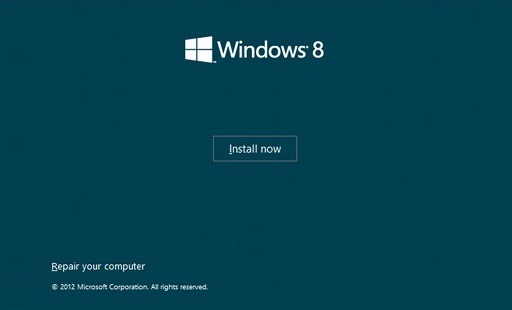
Step 2: On the Install now screen, select Repair your computer.
IMG_0086
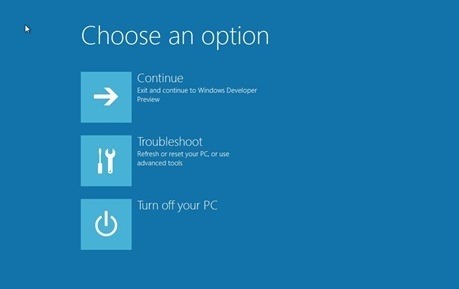
Step 3: On the next screen, choose Troubleshoot, followed by Advanced options.
IMG_0087
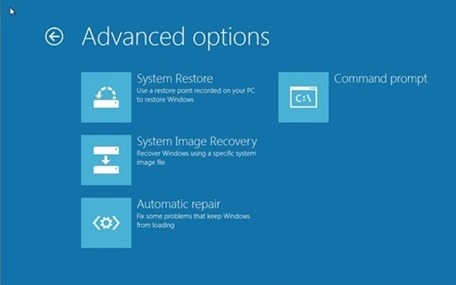
Step 4: From Advanced options, launch a command prompt windows, and enter the following command:
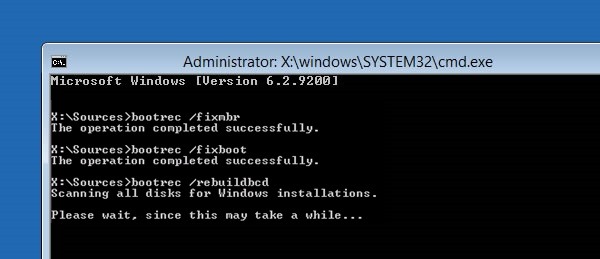
bootrec.exe /fixmbr
IMG_0088
Step 5: Once the command is finished, reboot your computer the normal way, and Windows 8 should load just fine now.
There are quite a few renditions of the Bootrec command that you may use to fix more than one type of issue with the Master Boot Record (MBR). Refer to the Microsoft Knowledge Base article here for more details.
You can follow us on Twitter, add us to your circle on Google+ or like our Facebook page to keep yourself updated on all the latest from Microsoft, Google, Apple and the web.

1 Temmuz 2013 Pazartesi

Master Boot Record (MBR) Windows 8

Master Boot Record (MBR) Windows 8


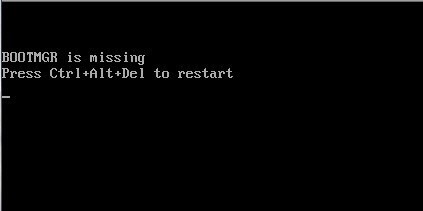
Bazen, tütsü un kapanma kötü Windowsului, Bir ya da sonucu kötü amaçlı yazılım enfeksiyon, MBR-aşağı sahip olduğu sistem önyükleme yetersizlik neden bozuk olabilir, ve kullanıcılar tarafından memnuniyetle hata mesajları genul BOOTMGR kayıp.
bootmgr-missing
Bu gibi durumlarda,, köklü önlem almadan önce, si anume işletim sistemini yeniden, yol açabilir önemli veri kaybı ne zaman orada yedekleme-uri onların, Kullanıcılar, Windows geri önyükleme başka bir yöntemi çağırabilirsiniz, si anume MBR en onarım (Master Boot Record).
Her ne kadar yöntemi MBR en onarım içinde Pencereler 8 benzer olduğunu Pencereler 7, kullanıcılar biraz zor nefamiliarizarii ile çünkü bulabilirsiniz meniul Windows Kurtarma din, Windows 8, bir ile interfata Modern (metro), işletim sisteminin benzer.
Için Windows Repara Master Boot Record 8 kullanıcılar ilk bir gerekir Sistem kurulum DVD sırasıyla (bir resim kurmak için yeterli değildir, bu yazılmalıdır, forma bootabila içinde, Bir DVD).
Windows cum putem Repara Master Boot Record 8?
  • girmek Kurulum DVD ondan sürücü ve bagaj bilgisayara. Gördüğünüz zaman Kurulum ekranı, Linke tıklayın Bilgisayarınızı onarın alt sol köşesinde
installation-screen
  • Sonraki ekranda seçin Sorun giderme, o zaman Gelişmiş seçenekler
troubleshoot
  • itibaren Gelişmiş seçenekler penceresini başlatmak Komut İstemi ve aşağıdaki komutları yazın:
advanced-options
Bootrec / fixmbr
Bootrec / fixboot
Bootrec / RebuildBcd
bootrec
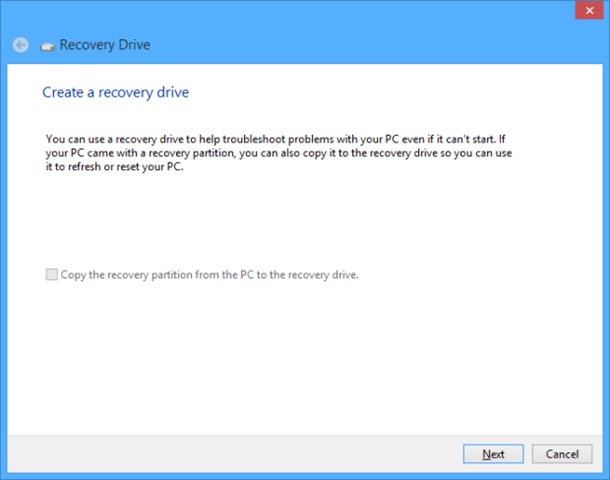
Bir yoksa DVD de instalare, Windows 8, Bu gibi durumlarda nerede hazırlıksız önlemek için Master Boot Record bozulursa, Bir oluşturulması tavsiye Kurtarma Sürücü, Bu daha sonra MBR en onarmak için kullanabileceğiniz. Oluşturmak için Kurtarma Sürücü, Bir bağlantı USB Flash Bellek Bilgisayar (Eğer silinir üzerinde önemli bir veri olduğundan emin olun), açık Çalıştırmak (Windows R) si tastatur RecoveryDrive.exe sonra izin Girmek.
recovery-drive
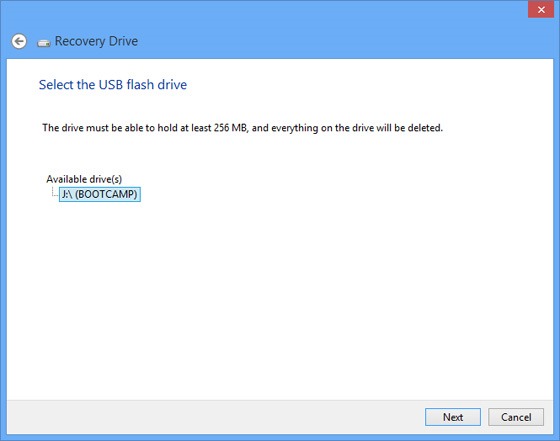
Ne zaman fereastra de kurtarma görüntülenir, tıklayın Sonraki, sürücü seçin (USB Flash Bellek-ül) Tıkladığınız tekrar bir kurtarma sürücüsü olarak kullanmak ve vermek istiyorum Sonraki, o zaman Oluşturmak.
select-drive
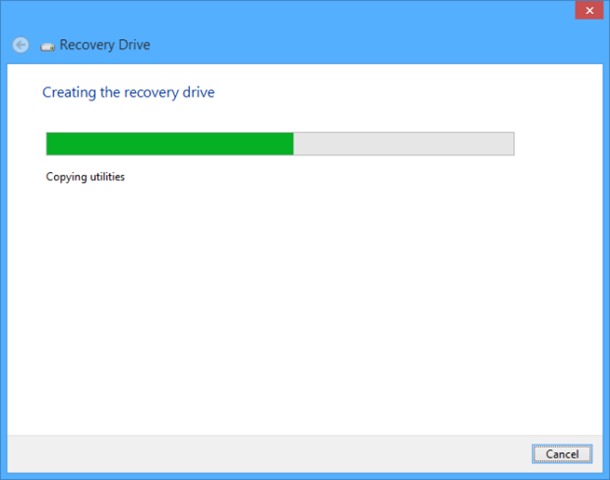
USB stick tüm sonra biçimlendirilir kamu hizmetleri sen dosya gereken Sistem kurtarma Bu kopyalanır.
create-recovery-drive
Başarı!

Windows 8 Boot Issues? Try Fixing the Master Boot Record (MBR) or Boot Configuration Data (BCD)

Windows 8 Boot Issues? Try Fixing the Master Boot Record (MBR) or Boot Configuration Data (BCD)

Windows 8 received a decent amount of enhancements on the desktop side that I tend to appreciate versus running Windows 7, even if that means I get Metro standing in the middle here and there occasionally. One such area of improvement is notification management and how it handles updates and system restarts. Running the final version of the OS for a few months now, it’s been a painless affair until this past weekend.
I shut down my desktop PC with the purpose of connecting new hardware and on the way out I was prompted to “update and shutdown”. Sure, why not. I went on to install a secondary SSD for maintenance purposes and apparently that was enough for my system to refuse booting right after. I tried to backtrack to no avail.
"Reboot and select proper boot device"
I bet you have no love for the message, neither do I.
Because I had disconnected a few devices, it took me a while to narrow things down to my boot SSD, and for a second I even thought the SSD had gone forever kaput. After booting with a different drive and noting I could read all my data on the drive in question, I took a deep breath and started to troubleshoot the boot record. Once you settle on the idea that it’s not a hardware problem and you are unable to boot up, your best bet is to try to fix the MBR (Master Boot Record).
With a long history of dual booting different versions of Windows over the years, finding a corrupt MBR, boot sector, or Boot Configuration Data (BCD) is nothing new, but it took me longer than usual to come to a solution. Here are a few things you can try and hopefully get back to full speed in no time.
First of all, you will need a bootable disc or pen drive. Here’s a quick guide to accomplish that if you don’t already have one handy. Although it's not a requirement, to be on the safe side it's recommended at this point that you disconnect other storage devices from your PC and leave only the SSD/HDD that you are troubleshooting.
Booting into the Windows 8 setup, select “Repair your computer” in the bottom part of the window, then “Troubleshoot” and “Advanced options”. Here I was given a good reminder of another cool Windows 8 feature. If you have a restore point created you can go back to that working copy of the OS without losing your data. Well, I didn’t have any.
So the first thing you will want to try is the Automatic Repair.
If that fixes your boot problem, you had it easy and go on to create a restore point for another time you are out of luck. If Windows is unable to fix your issue, read on.
Go back to the Advanced options and choose the Command Prompt. Going for the next easiest way to fix the problem, enter the following four commands into the prompt:
bootrec /fixmbr
bootrec /fixboot
bootrec /scanos
bootrec /rebuildbcd
After receiving a success confirmation. Close the CMD window and restart your PC.
If you are booted into Windows, excellent! If not, let’s try one last thing. Follow the previous steps until you have landed into the Command Prompt.
Enter the “bcdedit” command. A lists of items will appear under Windows Boot Manager and under Windows Boot Loader. Look for the following items:
  • Under Windows Boot Manager, the Device item should be set to unknown.
  • Under Windows Boot Loader, the Device and os device items should be set to unknown.
Run the following three commands to correct the settings:
bcdedit /set {default} device partition=c:
bcdedit /set {default} osdevice partition=c:
bcdedit /set {bootmgr} device partition=c:
One last thing to try (though in theory, it's the repeating what we’ve done before) browse to the folder X:SourcesRecovery and then enter “StartRep.exe” which executes another automated startup repair utility.
Hope this helps, and best of luck! Find previously published tech tips on TechSpot.